Pixel Art Tag Generator

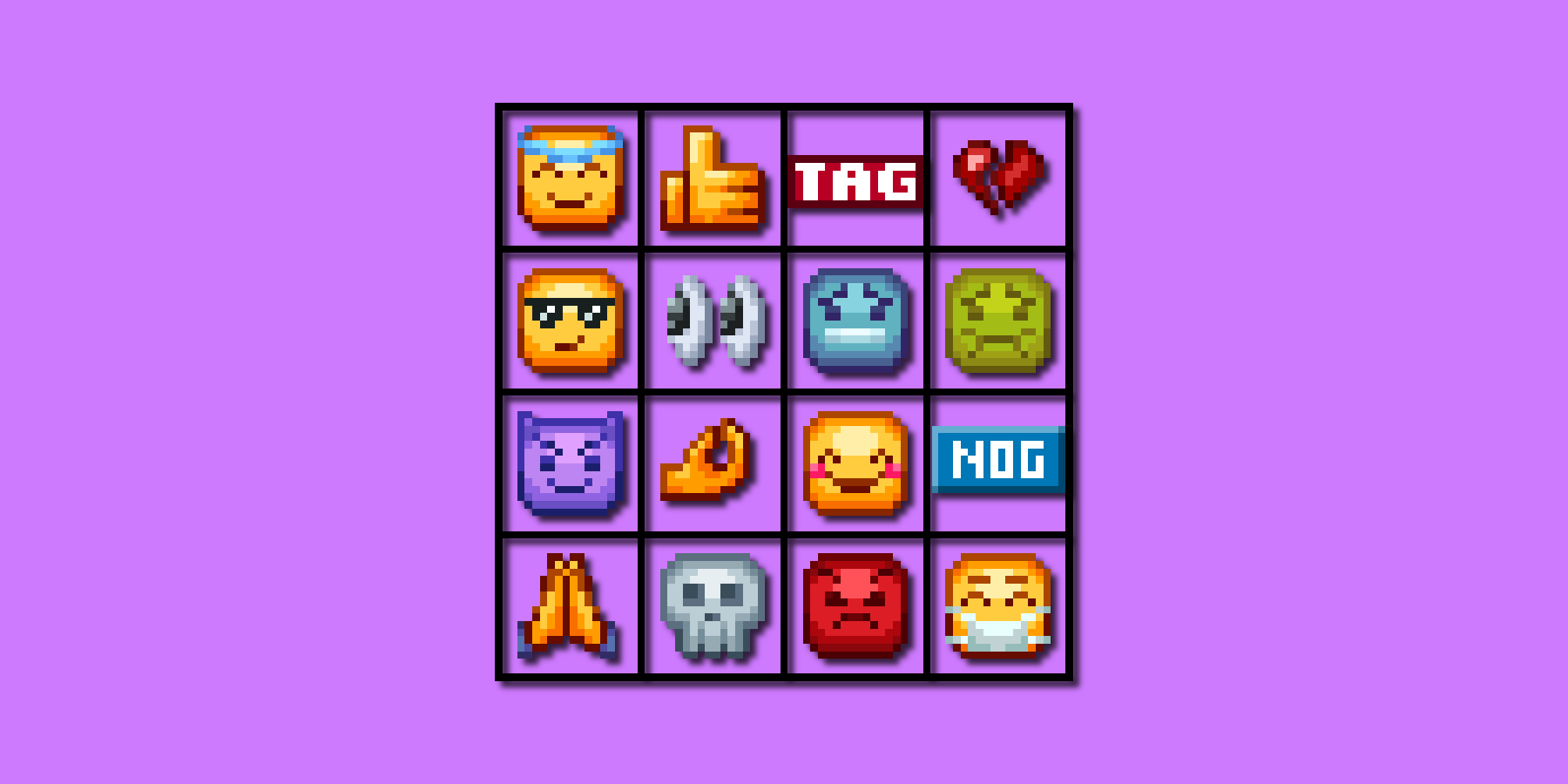
Create custom rank tags, chat prefixes and badges for Minecraft servers. Design professional staff ranks, player roles, and donor badges with pixel art styling, gradients, and shadows.

Preview

Actions

Text Input
Text Colors
Text Shadow
Text Outline
Background Padding
Background Colors
Background Shape
Background Shadow
Background Outline

Icons

Drop icons here or click to upload

Usage & Information

How to Use Generated Tags

Using Your Pixel Art Tags:

  • Copy or save your generated tag as a PNG image
  • Java: Place image in resource pack's textures folder, reference in font JSON file, use unicode in-game
  • Bedrock: Place in font folder glyph file, use unicode based on image position
  • Use unicode converter tool for character codes
  • Can be used in LuckPerms roles (Java plugin) with assigned unicodes

Best Practices:

  • Keep text short for better readability at small sizes
  • Use high contrast between text and background colors
  • Test your tags in-game at different GUI scales
  • Consider using shadows for better text visibility on complex backgrounds

Font Information

About the Pixel Fonts:

This tool offers 4 pixel font types based on classic bitmap patterns that have been widely used since the early 2000s. Due to their simple geometric nature and numerous independent implementations over the years, these basic letter patterns represent common typographic knowledge rather than copyrightable expression.

Available Font Types:

  • Mono (5x5): Standard monospace font, best readability
  • Medium (4x5): Slightly narrower, good balance of size and clarity
  • Compact (3x5): Smallest option, ideal for longer text or tight spaces
  • Mono Bold (6x5): Wider and bolder, ideal for maximum impact and visibility

Technical Details:

  • Style: Monospace bitmap fonts
  • Usage: Programmatically generated images only
  • Compatibility: Perfect for pixel art projects and retro interfaces

Legal Note: The basic geometric patterns used for letter shapes represent fundamental typographic forms that are not subject to copyright protection. We use these patterns solely for generating images and do not distribute font files.

Advanced Features

Text Features:

  • 4 Font Types: Mono (5x5), Medium (4x5), Compact (3x5), and Mono Bold (6x5) pixel fonts
  • Gradient Colors: Add multiple colors with per-color transparency and draggable gradient stop positions for precise control
  • Hard Colors Mode: Sharp color transitions instead of smooth gradient interpolation
  • Direction Control: Horizontal, vertical, 45° diagonal, -45° diagonal, and radial (center out) gradients
  • Text Shadow: 5 shadow positions (right, below, below-right, above, left) with custom color and transparency
  • Text Outline: Adjustable outline thickness (0-5 pixels) with custom color and transparency
  • Character Support: Letters, numbers, and common symbols

Background Options:

  • Gradient Backgrounds: Multiple colors with per-color transparency, draggable gradient stops, and hard color mode
  • Background Shadow: 5 shadow positions with custom color and transparency, plus a "match background" mode for color-matched darker shadows
  • Padding Control: Symmetric (horizontal/vertical) or asymmetric (top/right/bottom/left) padding, 0-10 pixels per side
  • Rounded Corners: Pixel-perfect rounded corners (0-10 pixels)
  • Background Outline: Adjustable thickness (0-5 pixels) with custom color and transparency

Icon Features:

  • Upload Custom Icons: Drag and drop or click to upload pixel art icons in any resolution, multiple files at once
  • Flexible Positioning: Place icons before, after, above, or below text
  • Pixel-Perfect Nudging: Arrow buttons to adjust icon position pixel-by-pixel with a reset button
  • Icon Shadows: Enable shadows on individual icons independently - uses the text shadow direction, color, and opacity settings even when text shadow is disabled
  • Icon Outline: Apply outline to individual icons independently - uses the text outline thickness, color, and opacity settings even when text outline is set to zero
  • Render Order: Toggle icons to render in front of or behind text for layering control
  • Icon Transparency: Per-icon transparency slider (0-100%)
  • Icon Spacing: Adjust space between icons and text (-10 to 10 pixels, supports negative values for overlapping effects)
  • Layer Management: Reorder icons to control stacking order

Preview & Export:

  • Live Preview: Real-time canvas preview with pinnable mode that stays visible while scrolling
  • Copy to Clipboard: One-click copy as PNG image
  • Save as PNG: Download with automatic naming ([text]-tag-[timestamp].png)

Back to Tools